Veo 3.1 Camera Movements Reference
The definitive guide to every camera movement you can control in Veo 3.1.
Veo 3.1's standout feature is camera control. While other models respond to basic directions like "pan left," Veo 3.1 executes complex compound movements with cinematic precision. This reference documents every camera movement we've tested successfully.
Basic movements
These are the foundation. Veo 3.1 handles all of them reliably.
Pan
Horizontal camera rotation from a fixed position.
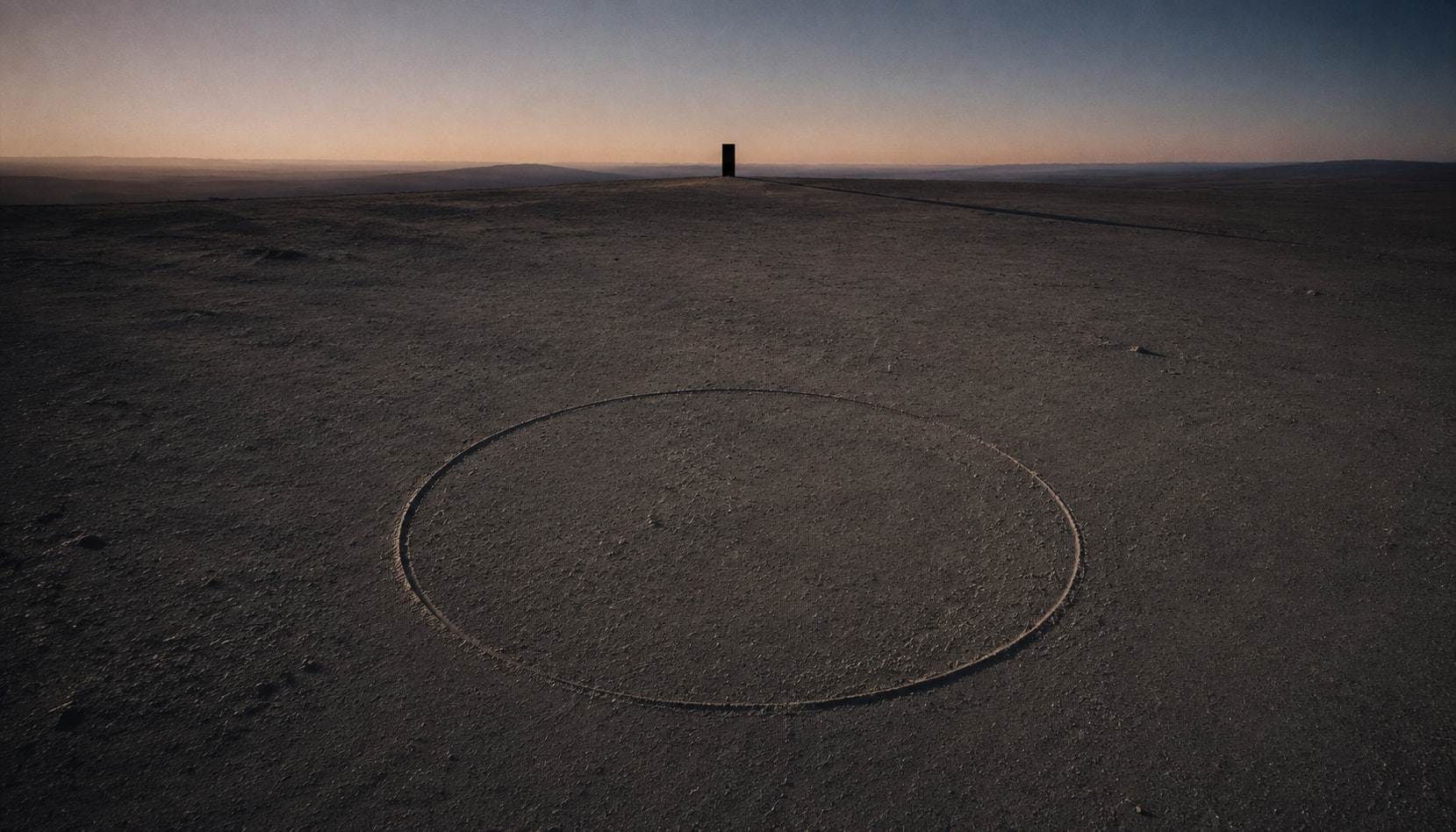
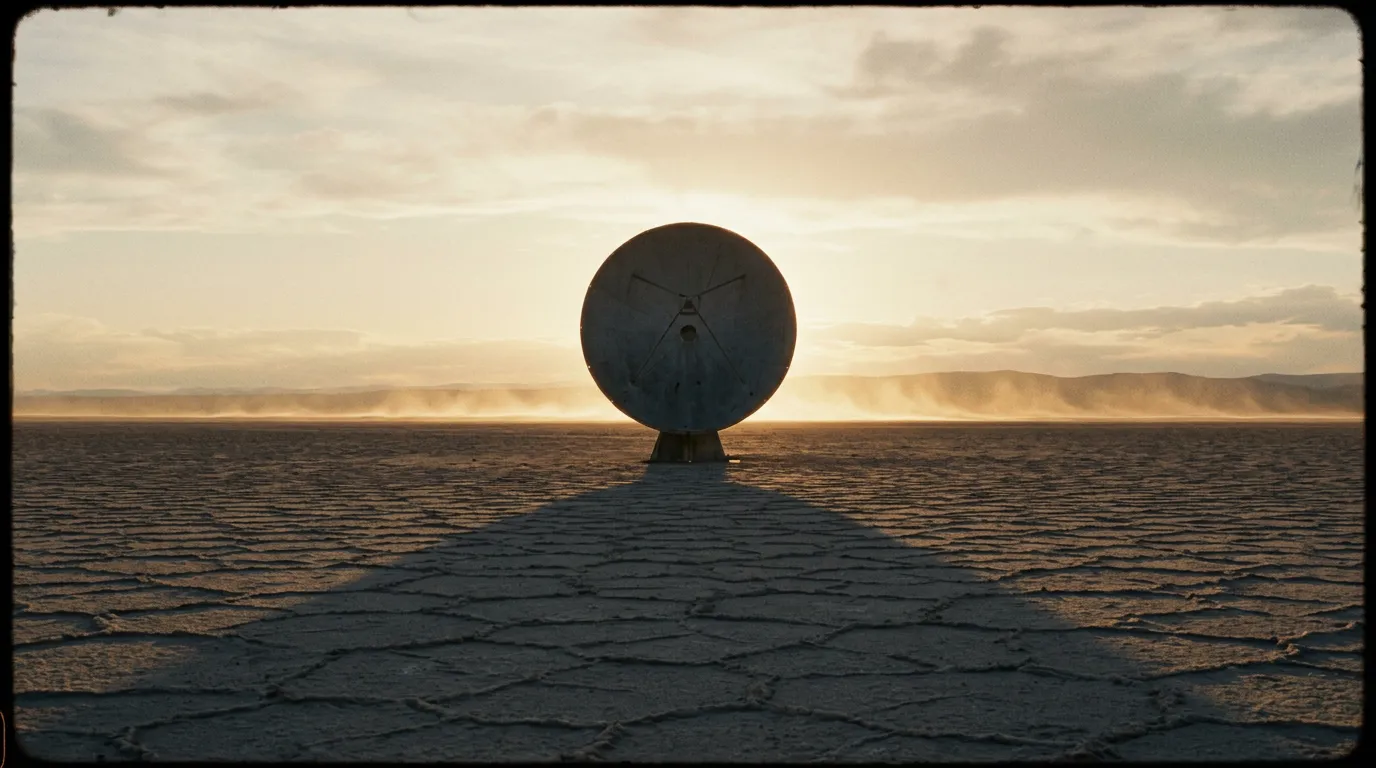
- Prompt: "Slow pan left across a desert landscape at sunset"
- Variations: pan left, pan right, slow pan, fast pan, 180-degree pan
Tilt
Vertical camera rotation from a fixed position.
- Prompt: "Tilt up from a person's shoes to reveal their face"
- Variations: tilt up, tilt down, slow tilt, dramatic tilt up
Dolly
Camera physically moves forward or backward.
- Prompt: "Dolly in slowly toward a candle on a dark table"
- Key distinction: Dolly changes perspective (parallax). Zoom does not. Veo 3.1 gets this right.
Zoom
Lens zoom — no camera movement, no parallax shift.
- Prompt: "Slow zoom into the clock face on a tower"
- Variations: zoom in, zoom out, crash zoom (fast dramatic zoom)
Truck / Track
Camera moves laterally, parallel to the subject.
- Prompt: "Tracking shot following a cyclist from the side"
- Variations: truck left, truck right, tracking shot
Crane / Boom
Vertical camera movement (the whole camera moves up or down).
- Prompt: "Crane up from street level to rooftop view of the city"
- Variations: crane up, crane down, boom up, boom down
Advanced movements
These are where Veo 3.1 separates itself from other models.
Dolly zoom (Vertigo effect)
Camera dollies in while zooming out (or vice versa). Creates a disorienting background shift.
- Prompt: "Dolly zoom on a woman's face — the background stretches away while she stays the same size"
- Reliability: Works about 80% of the time. When it hits, it's stunning.
Orbital shot
Camera circles around the subject.
- Prompt: "Slow 180-degree orbit around a sculpture in a white gallery"
- Variations: full orbit (360), half orbit (180), quarter orbit (90). Specify degrees for better control.
Rack focus
Shift focus from one subject to another within the same shot.
- Prompt: "Rack focus from a flower in the foreground to a person standing in the background"
- This is one of Veo 3.1's most reliable advanced features.
Steadicam / floating camera
Smooth, stabilized movement through a space — like a Steadicam operator walking through a room.
- Prompt: "Steadicam shot moving through a crowded restaurant, weaving between tables"
- Variations: "floating camera," "smooth walk-through"
Dutch angle
Camera tilted on its roll axis for dramatic tension.
- Prompt: "Dutch angle close-up of a detective examining evidence"
- Works best as a static angle rather than a dynamic tilt during the shot.
Compound movements
Veo 3.1's real power is combining movements. Here are tested combinations:
Crane + Pan
- "Crane up while panning right to reveal the full cityscape"
Dolly + Tilt
- "Dolly in toward a building entrance while tilting up to show the full facade"
Track + Rack focus
- "Track alongside two people walking, rack focus from the person in front to the person behind"
Orbital + Crane
- "Orbit around the dancer while craning up from floor level to overhead"
Rule of thumb: Two simultaneous movements work reliably. Three movements in one prompt are inconsistent — the model sometimes drops one.
Camera position keywords
Beyond movement, you can set the camera position:
- "Eye level" — standard human perspective
- "Low angle" — looking up at the subject (makes them imposing)
- "High angle" — looking down (makes the subject small/vulnerable)
- "Bird's eye" — directly overhead
- "Worm's eye" — ground level looking up
- "Over-the-shoulder" — positioned behind one subject looking at another
Lens simulation
Veo 3.1 responds to lens descriptions:
- "Wide angle lens" or "24mm" — exaggerated perspective, more environment
- "Telephoto" or "200mm" — compressed perspective, shallow depth of field
- "Macro lens" — extreme close-up with very shallow DOF
- "Anamorphic lens" — wider aspect ratio feel, oval bokeh, lens flares
Tips for best results
- Put camera direction in its own sentence, separate from subject description
- Specify speed: "slow dolly" vs. "fast dolly" makes a big difference
- Use degrees for orbital shots: "90-degree orbit" is more reliable than "partial orbit"
- Test movements individually before combining them
- Veo 3.1 defaults to smooth motion — if you want handheld shake, explicitly request it